
(Update: User Superfluid@chaos.social was able to fix the spline alignment issue. You can see her solution here: https://pastebin.com/4N5iKksm)
So, the other day I was playing around with Unreal’s Landscape system, which for the most part is incredibly useful and intuitive.
One of the neat features it has is the ability to define Landscape Splines, which allows you to quickly make roads and paths that sit nicely upon the landscape you have created.
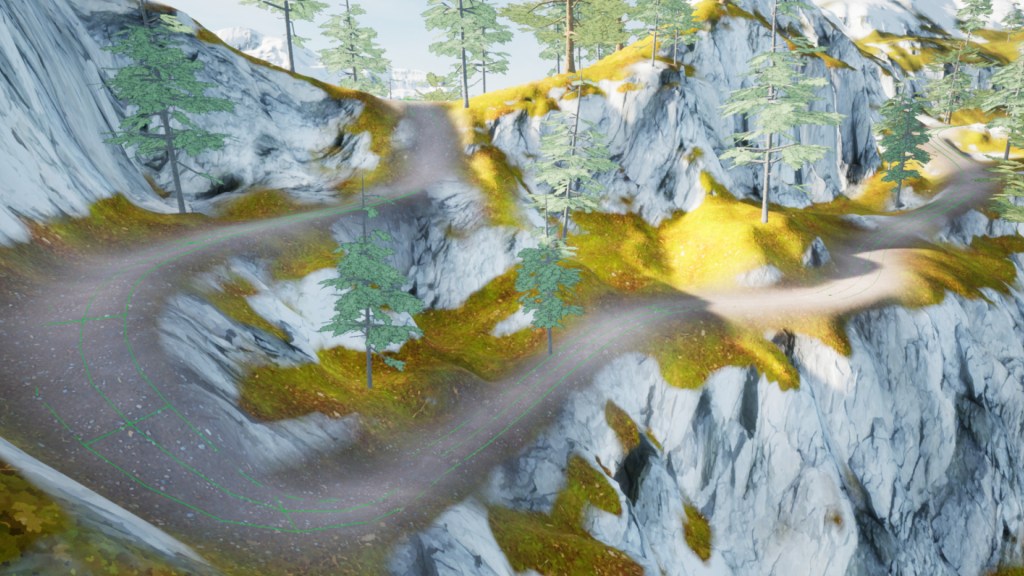
However, a major shortcoming is that there doesn’t seem to be any built-in solution for accessing the splines from outside the Landscape system. So if, for example, you wanted to have a character automatically travel along the path, you need some way to extract that spline data.
The way I accomplished this was by creating a custom actor class in C++ that lets you copy the Landscape Spline into an easily accessible Spline Component. This component can then be used for all your various pathing needs.
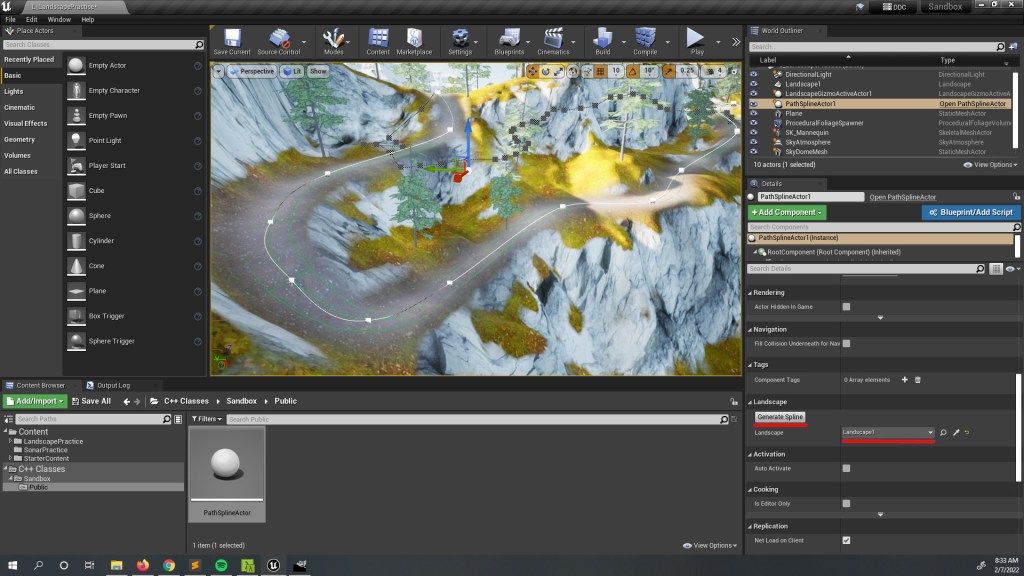
Here’s what the code looks like (I am using Unreal 4.27):
PathSplineActor.h
#pragma once

#include "CoreMinimal.h"
#include "GameFramework/Actor.h"
#include "Components/SplineComponent.h"
#include "LandscapeProxy.h"

#include "PathSplineActor.generated.h"


UCLASS()
class APathSplineActor : public AActor
{
	GENERATED_BODY()


public:
	UPROPERTY(VisibleAnywhere, BlueprintReadOnly, Category="Components")
	class USplineComponent* SplineComponent;

	UPROPERTY(EditAnywhere, BlueprintReadWrite, Category="Landscape")
	ALandscapeProxy* Landscape;

	APathSplineActor();


private:
	UFUNCTION(CallInEditor, Category="Landscape")
	void GenerateSpline();
};
PathSplineActor.cpp
#include "PathSplineActor.h"

#include "Components/SceneComponent.h"
#include "LandscapeSplineControlPoint.h"


// Constructor
APathSplineActor::APathSplineActor() : Super()
{
	RootComponent = CreateDefaultSubobject<USceneComponent>(TEXT("Root Component"));

	SplineComponent = CreateDefaultSubobject<USplineComponent>(TEXT("Path Spline"));
}


// Pull the landscape spline from the level and copy it to the spline component.  Will clear the existing splinecomponent!
void APathSplineActor::GenerateSpline()
{
	#if WITH_EDITOR

	if (Landscape != nullptr) {
		// Erase pre-existing spline points
		SplineComponent->ClearSplinePoints(true);

		// Get the spline data from the landscape.
		ULandscapeSplinesComponent* LandscapeSpline = Landscape->SplineComponent;

		// Note:  ControlPoints is protected.  You will need to edit LandscapeSplinesComponent.h to make it public.
		TArray<ULandscapeSplineControlPoint*> LandscapeSplinePoints = LandscapeSpline->ControlPoints;

		for (int i = 1; i < LandscapeSplinePoints.Num(); i++) {
			// Separate out the given point
			ULandscapeSplineControlPoint* LandscapePoint = LandscapeSplinePoints[i];

			// Landscape spline points are stored relative to the origin of the landscape, so adjust accordingly.
			FVector Point_Worldspace = LandscapePoint->Location + Landscape->GetActorLocation();

			// Add a new spline point to the component
			SplineComponent->AddSplinePoint(Point_Worldspace, ESplineCoordinateSpace::World, true);
		}
	}
	#endif
}
Note that you will need to add the Landscape module to your project’s Build.cs file:
PublicDependencyModuleNames.AddRange(new string[] { "Core", "CoreUObject", "Engine", "InputCore", "Landscape" });
As well as edit Unreal’s LandscapeSplinesComponent.h to make the ControlPoints property public, instead of protected:
public:
	UPROPERTY(TextExportTransient)
	TArray<ULandscapeSplineControlPoint*> ControlPoints;
You can find the header file under Engine\Sources\Runtime\Landscape\Classes.
I’ll go ahead and give a rundown of how the GenerateSpline function works. First, we make sure that this function is being run from within the editor:
#if WITH_EDITOR

<The rest of our code>

#endif
This is because this function uses ALandscapeProxy, which (as I understand it) is an editor-only representation of the landscape that is not available at runtime.
After a quick check to make sure we aren’t using a null pointer, we then clear out any existing spline data that might get in the way, and get a pointer to the Landscape Spline.
	if (Landscape != nullptr) {
		// Erase pre-existing spline points
		SplineComponent->ClearSplinePoints(true);

		// Get the spline data from the landscape.
		ULandscapeSplinesComponent* LandscapeSpline = Landscape->SplineComponent;
Now, we get the control points of the Landscape Spline. Recall again that getting this information requires editing the Engine code.
		// Note:  ControlPoints is protected.  You will need to edit LandscapeSplinesComponent.h to make it public.
		TArray<ULandscapeSplineControlPoint*> LandscapeSplinePoints = LandscapeSpline->ControlPoints;
Finally, for each control point, we add a corresponding point to our actor’s spline component.
		for (int i = 1; i < LandscapeSplinePoints.Num(); i++) {
			// Separate out the given point
			ULandscapeSplineControlPoint* LandscapePoint = LandscapeSplinePoints[i];

			// Landscape spline points are stored relative to the origin of the landscape, so adjust accordingly.
			FVector Point_Worldspace = LandscapePoint->Location + Landscape->GetActorLocation();

			// Add a new spline point to the component
			SplineComponent->AddSplinePoint(Point_Worldspace, ESplineCoordinateSpace::World, true);
		}
A couple things to note. First, this code doesn’t account for any potential rotation in the landscape, so if yours is rotated you might need to fiddle with it a bit. Second, this loop skips the first control point, as for whatever reason that point appears to always be at the origin of the landscape.
Once you’ve got the code set up, open the editor and place the actor in the level. Under the details menu, under “Landscape”, you will see a button to run the function and a dropdown where you can specify the desired landscape. Hit the button, and the spline will appear, ready to be used!
One final note: if you look closely, you’ll notice that the spline we created doesn’t perfectly follow the center of the path. I wasn’t able to find a straightforward way to fix this, so it’s up to you if you want to fiddle with it or not. If you come up with a nice solution, please let me know!
Cheers,
Harrison


 So the code is not useable since some symbols (e.g. “<") are gone… Maybe you can contact me via e-mail, so that I can send you the right one.


 Switchback Studio
Leave a reply to Thomas Cancel reply